The Viewport
The viewport is the main editing area. It displays a top-down 2D view of your world and allows you to use tools to modify the world.
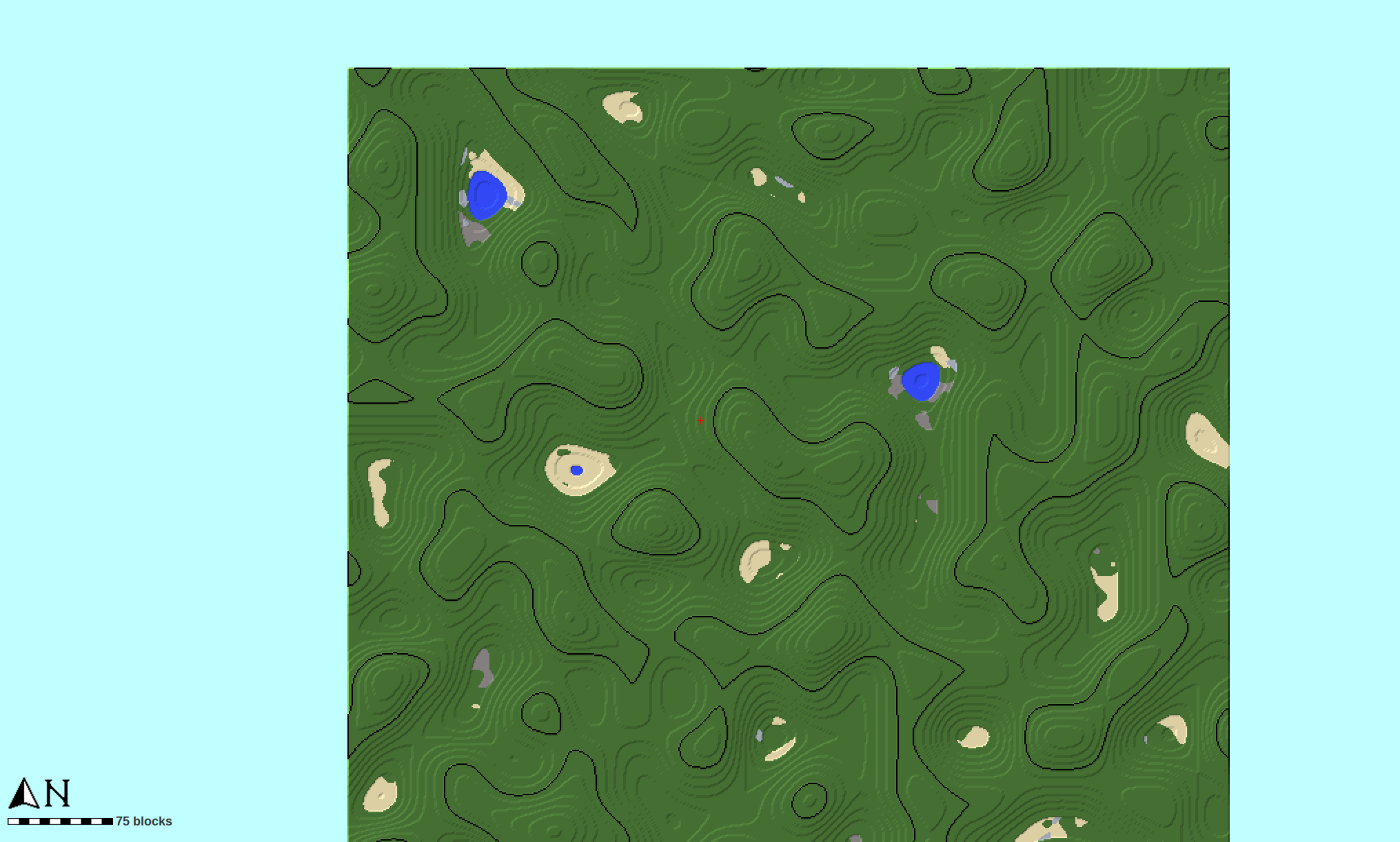
You can move the view using the scroll bars on the right and bottom or by clicking and holding the middle mouse button and moving the cursor.
To zoom in and out, hold Ctrl or ⌘ and scroll the mouse wheel. There is a scale marker in the bottom left corner.
Toolbar controls
You can find viewport controls in the toolbar.
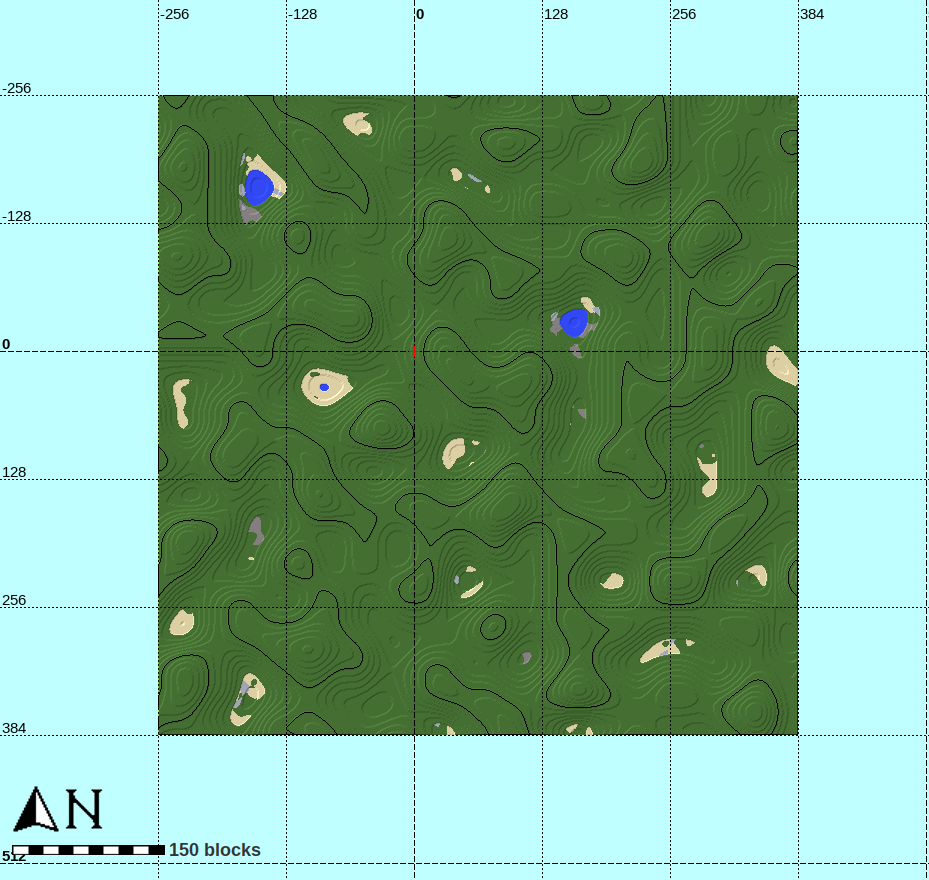
- Enable or disable the grid
Shown below is the viewport with the grid enabled.
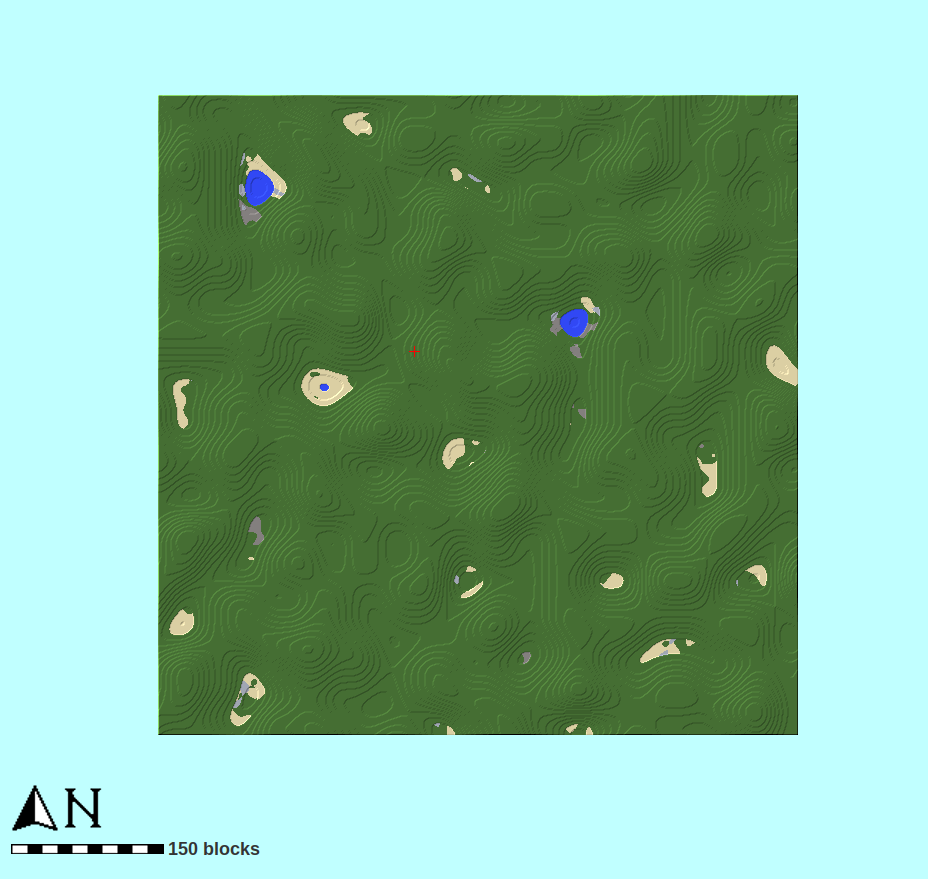
- Enable or disable height contours
Shown below is the viewport with height contours disabled.
- Enable or disable image overlay(s)
See Image Overlays.
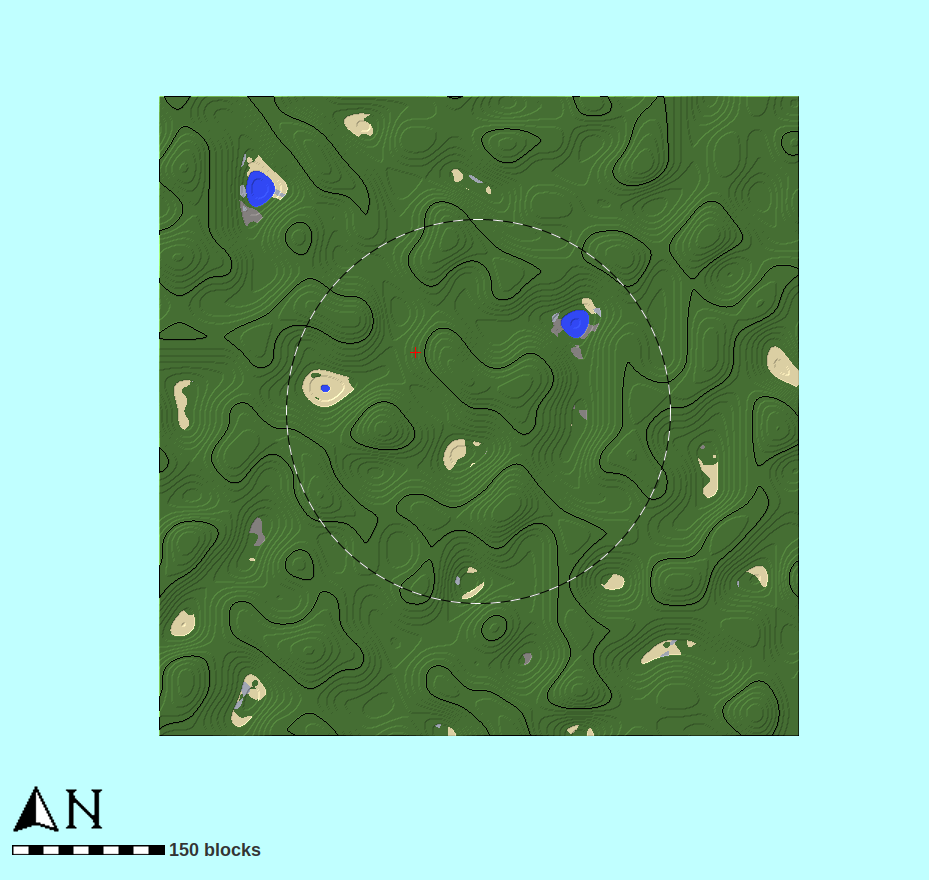
- Enable or disable showing the render distance
Shown below is the viewport with render distance enabled.
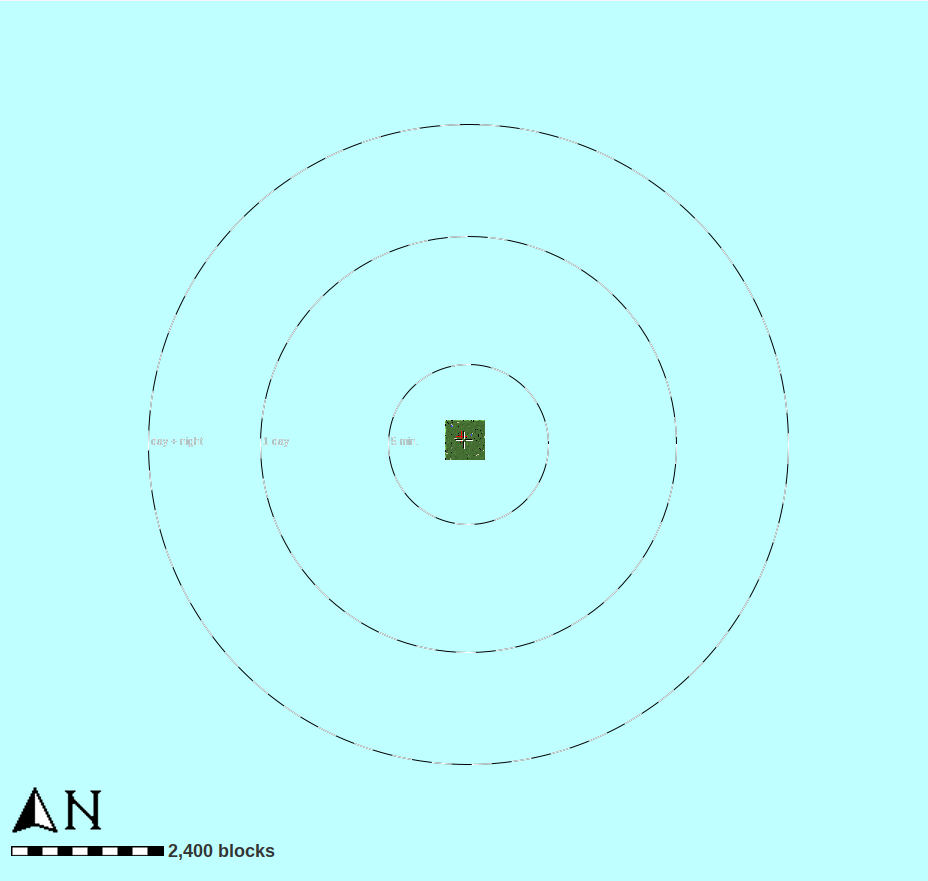
- Enable or disable showing the five minute, one day, and one day and night walking distances
Shown below is the viewport with walking distances enabled.
Rotate the direction the light comes from anticlockwise
Rotate the direction the light comes from clockwise